Website screenshot monitoring.
Capture the same pages on a schedule and keep every image. An uptime check tells you a page answered; a screenshot shows what it looked like when it did.
urlshot.io takes the screenshots. The schedule, the storage and the comparison run in your own code, and this page shows each of them.
captures/pricing/4 captures
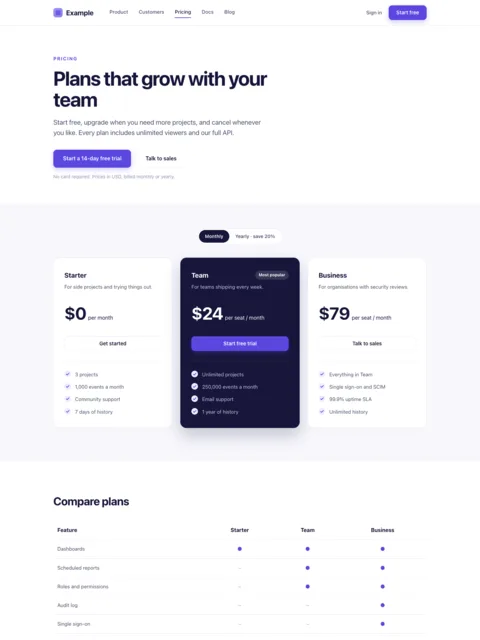
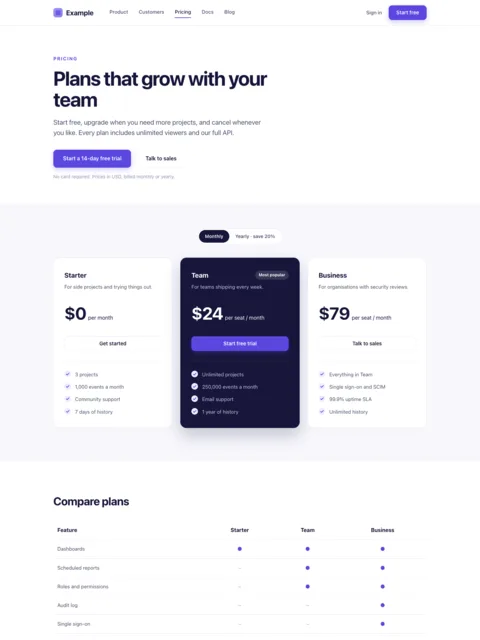
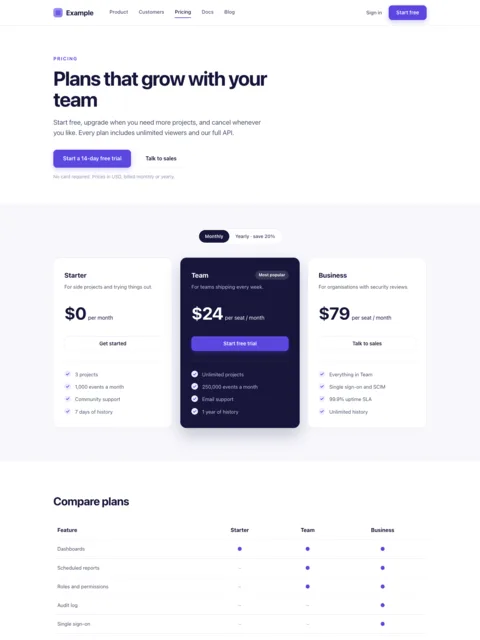
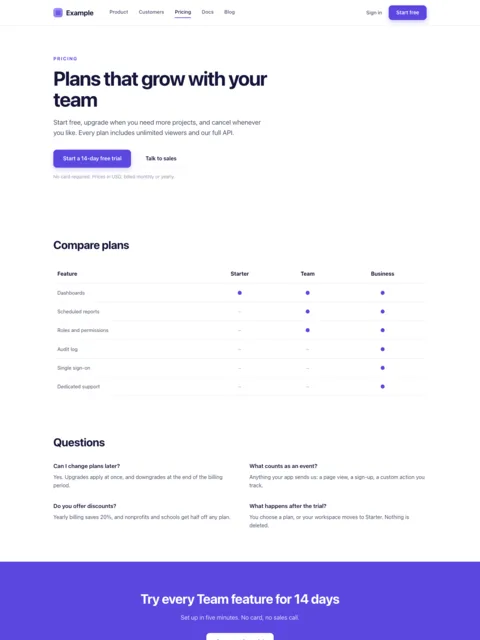
200 OK.Monitor websites visually.
Most monitoring asks a page a yes-or-no question. Did it return 200? Did it answer in time? Does the HTML contain this string? A page can pass all three and still be broken for the people reading it.
A screenshot records the rendered result: what a visitor saw at that moment, after the scripts, stylesheets and fonts. Keep one a day and you have a record you can compare, attach to an incident, or scroll back through when someone asks what the page said last month.
Changes a status check does not see
- A CSS change hides the pricing table. The HTML still contains every price.
- A web font fails to load, and headings fall back to a system face that wraps onto three lines.
- A third-party script adds a banner over the sign-up button.
- A JavaScript error leaves a single-page app’s shell empty. The server sent the HTML it always sends.
Automate website screenshots.
The API takes a screenshot whenever you ask for one, so anything that runs on a timer can do the asking. Here is the whole loop, and which parts are your code:
- Your codeSchedulercron, a scheduled function or a CI job
- Your codeCapture scriptLoops over the pages you watch
- urlshot.ioScreenshot APIRenders each page fresh
- Your codeYour storageDisk, S3 or R2, filed by date
- Your codeComparisonOptional: an image diff and an alert
- cron, on any server you already run.
- A scheduled cloud function, such as an EventBridge rule invoking a Lambda, Cloud Scheduler, or a Cloudflare Cron Trigger.
- A scheduled CI pipeline, in GitHub Actions or GitLab CI, which can also keep the images as build artifacts.
- Your application’s job scheduler, such as Sidekiq, Celery beat or BullMQ repeatable jobs, next to the rest of your background work.
The capture script
Each run takes one screenshot of every page on the list and saves it as captures/<page>/<date>.png.
// capture.mjs: take a screenshot of each page and save it under today's date.
import { mkdir, writeFile } from 'node:fs/promises';

// The pages to watch. Each name becomes a folder: captures/pricing/...
const pages = {
  home: 'https://example.com/',
  pricing: 'https://example.com/pricing',
};

const today = new Date().toISOString().slice(0, 10); // e.g. 2026-09-28

// One page at a time, so the script never runs more renders at once than your plan allows.
for (const [name, url] of Object.entries(pages)) {
  const params = new URLSearchParams({
    url,
    full_page: 'true',
    viewport_width: '1440',
    format: 'png',
    wait_until: 'networkidle2',
    block_cookie_banners: 'true',
  });

  const response = await fetch(`https://api.urlshot.io/v1/screenshot?${params}`, {
    headers: { Authorization: `Bearer ${process.env.URLSHOT_API_KEY}` },
  });

  if (!response.ok) {
    // Report the error and move on, so one broken page doesn't stop the others.
    const { error } = await response.json();
    console.error(`${name}: ${error.code} (request ${error.requestId})`);
    process.exitCode = 1;
    continue;
  }

  // Saves captures/pricing/2026-09-28.png
  await mkdir(`captures/${name}`, { recursive: true });
  await writeFile(`captures/${name}/${today}.png`, Buffer.from(await response.arrayBuffer()));
}full_page=truerecords the whole page, not just the part above the fold.format=pngis lossless, so a difference between two captures is on the page, not in the compression.wait_until=networkidle2waits for content that scripts load after the page’s load event, such as prices and product grids.block_cookie_banners=truekeeps consent dialogs out of every capture, so they do not hide the page or show up as a change.- There is no
cache_ttl, deliberately. Every request renders the page as it is now, which is the point of monitoring it.
Run it on a schedule
crontab
# Every day at 06:00. --env-file (Node 20.6+) keeps the key out of the crontab.
0 6 * * * cd /srv/page-history && node --env-file=.env capture.mjs >> capture.log 2>&1
GitHub Actions
# .github/workflows/capture.yml
name: Capture pages
on:
  schedule:
    - cron: '0 6 * * *' # every day at 06:00 UTC
  workflow_dispatch: # and on demand

jobs:
  capture:
    runs-on: ubuntu-latest
    steps:
      - uses: actions/checkout@v4
      - uses: actions/setup-node@v4
        with:
          node-version: 22
      - run: node capture.mjs
        env:
          URLSHOT_API_KEY: ${{ secrets.URLSHOT_API_KEY }}
      - uses: actions/upload-artifact@v4
        with:
          name: captures-${{ github.run_id }}
          path: captures/
Each capture is one credit. 10 pages once a day come to about 300 a month, which the Startup plan’s 1,000 credits cover. See pricing.
What can you monitor?
Competitor landing pages
See when a competitor changes their headline, positioning or calls to action, and keep what the page said before.
Pricing pages
Plans, prices and limits change quietly. A daily capture dates each change and keeps the old table, for your own pages and for others’.
E-commerce product pages
Follow price, availability and presentation: your own listings on a marketplace, or a competitor’s product.
Client websites
Agencies keep a dated record of every client site, and can show what a page looked like before and after a release.
Marketing pages
Catch a campaign page that a CMS edit or an expired offer broke, before more traffic is sent to it.
Your own public pages
A visual record alongside your uptime history: what users actually saw on the day of an incident.
Build a screenshot history.
A screenshot history is just your screenshots, kept by page and by date. On disk, the script above builds this:
captures/
├── home/
│   ├── 2026-09-26.png
│   ├── 2026-09-27.png
│   └── 2026-09-28.png
└── pricing/
    ├── 2026-09-26.png
    ├── 2026-09-27.png
    └── 2026-09-28.png
urlshot.io doesn’t keep your screenshots: unless you set cache_ttl, the image exists only in the response you received. Your storage is the history.
In S3, or any storage that works like it, save each screenshot under the page and the time:
import {
  PutObjectCommand,
  S3Client,
} from '@aws-sdk/client-s3';

const s3 = new S3Client({});

// In capture.mjs, in place of mkdir and writeFile.
// Saves e.g. pricing/2026-09-28T06:00:04.512Z.png
const time = new Date().toISOString();
const requestId = response.headers.get('x-request-id') ?? '';

await s3.send(new PutObjectCommand({
  Bucket: 'my-page-history',
  Key: `${name}/${time}.png`,
  Body: Buffer.from(await response.arrayBuffer()),
  ContentType: 'image/png',
  // Quote the request id if you ever ask us about it.
  Metadata: { 'request-id': requestId },
}));- Names that end in the date and time sort in order, so the previous screenshot of a page is the one listed just before it.
- Keep the
X-Request-IDwith each image. Quote it if you ever need to ask us about a screenshot. - A lifecycle rule can move old screenshots to cheaper storage, or delete them.
Detect visual changes.
Two screenshots of the same page, taken with the same options, can be compared pixel by pixel. urlshot.io doesn’t compare them for you, but an image comparison library such as pixelmatch does it in a few lines. This script fails when more than 0.1% of the page changed, and saves an image with the changed pixels in red:
// compare.mjs: compare yesterday's and today's screenshot of a page.
// npm install pixelmatch pngjs
import { readFileSync, writeFileSync } from 'node:fs';
import pixelmatch from 'pixelmatch';
import { PNG } from 'pngjs';

const before = PNG.sync.read(readFileSync('captures/pricing/2026-09-27.png'));
const after = PNG.sync.read(readFileSync('captures/pricing/2026-09-28.png'));

// pixelmatch can only compare two images of the same size. A page that grew or
// shrank has changed anyway, so report that and stop.
if (before.width !== after.width || before.height !== after.height) {
  console.log(`The page changed size: ${before.width}×${before.height} → ${after.width}×${after.height}`);
  process.exit(1);
}

// Count the pixels that differ, and draw them in red in a third image.
const { width, height } = after;
const diff = new PNG({ width, height });
const changed = pixelmatch(before.data, after.data, diff.data, width, height, {
  threshold: 0.1, // how different one pixel must be to count, from 0 to 1
});

const percent = (changed / (width * height)) * 100;
console.log(`${percent.toFixed(2)}% of the page changed`);

// Ignore tiny differences; flag anything over 0.1% of the page.
if (percent > 0.1) {
  writeFileSync('diff.png', PNG.sync.write(diff));
  process.exit(1);
}
Keep every option identical
A different viewport, scale or format gives a different image, even when the page itself hasn’t changed.
Hide what always changes
Dates, carousels, live counters and rotating promotions make every screenshot different. Hide them with hide_selectors, and stop animations with custom_css:
*, *::before, *::after {
  animation: none !important;
  transition: none !important;
  caret-color: transparent !important;
}
Ignore tiny changes
A new timestamp or slightly smoother text changes a few pixels; a missing section changes tens of thousands. Set a limit that ignores the first and catches the second, like the 0.1% above.
A new height is a change
A full-page screenshot gets taller or shorter when content is added or removed. The script reports that before it compares pixels.
From there, alert the way your team already does: an email, a chat message, an issue with both images attached. The same comparison run on every deployment, against approved baselines, is visual regression testing.
What urlshot.io does, and what it doesn’t yet.
urlshot.io does today
- Renders a public page in Chromium, fresh, whenever you ask.
- The full page or the viewport, at the size you set, as PNG, JPEG or WebP.
- Hides consent dialogs and the elements you name, and applies your CSS.
- Returns the image with a request id, and one credit per render.
Built in your code, as shown above
- The schedule that decides when each page is captured.
- The storage that keeps every capture: the history.
- The comparison between one capture and the last.
- The alert when something changed.
Website monitoring questions.
How can I automatically screenshot a website every day?
Run a script that calls the screenshot API from a daily scheduler: a cron job, a scheduled cloud function or a scheduled CI pipeline. The capture script and schedules above do exactly that. Each page costs one credit per capture, so one page a day is about 30 credits a month.
How can I keep a history of website screenshots?
Save every screenshot under the page’s name and the time it was taken, for example pricing/2026-09-28T06:00:04.512Z.png in S3. Names like that sort by date, so the previous screenshot of a page is the one listed just before it. urlshot.io keeps no copy of your screenshots, so your storage is the history.
Can screenshots be used to detect website changes?
Yes. Compare two captures of the same page, taken with identical options, using an image-diff library such as pixelmatch. Hide the parts that always change, like dates and carousels, and alert on the share of pixels that changed rather than on any change. urlshot.io takes the captures; the comparison runs in your code.
Does every scheduled capture cost a credit?
Yes. A monitoring capture has to be fresh, so it renders the page each time and costs one credit, including a render that fails after the browser started. Don’t add cache_ttl to these requests: a cached image would be an older capture.
Can I monitor pages behind a login?
No. The API captures public http and https pages only, and there is no option to send cookies or headers with the page request. Dashboards and account pages cannot be captured this way.
Related use cases.
Visual regression testing
Capture your pages before and after a deployment in the same browser, and fail the build when something moved that should not have.
AI agents
Give a vision model the page as a browser renders it: layout, charts and dialogs that extracted text leaves out.
Or see every use case, or the same requests in your own language in the code examples.
Start automating website screenshots.
Create a key, point the capture script at your pages and add it to cron or CI. 100 screenshots a month are free.